How to Choose a GaN Charger for a Phone and Laptop
A GaN label does not decide whether a charger fits your devices. Start with USB PD, port sharing, cable rating, and the power you use together.
The short answer
A gallium nitride, or GaN, charger can be compact for its advertised output, but the GaN label should be the last item on your checklist. The better purchase is the model that supports your devices’ charging protocol, keeps enough power available when multiple ports are used, and is paired with an appropriately rated cable. USB Power Delivery is the charging system that matters most for many current phones, tablets, and laptops because it lets compatible equipment negotiate power over USB-C.
USB-C charger, charging block or charger box?
These are different names for the same product. Retail listings use “USB-C charger”, “charging block”, “charger box”, “wall charger” and “power brick” interchangeably. Device makers often say power adapter or travel adapter instead. The name tells you nothing about output. Two products sold under any of these names can differ in USB PD support, PPS ranges, number of ports and the way those ports share power. The rest of this guide is about the facts that do differ: the output table, the port-sharing rules and the cable.
Start with the devices you use together
List the device combinations you actually plug in at the same time. The difference between a travel charger and a desk charger is often the number of simultaneous loads, not just the wattage.
| Your regular setup | What to prioritize |
|---|---|
| Phone only | Compact size, USB PD, single USB-C port |
| Phone and tablet | Two usable ports and a published shared-output figure |
| Laptop and phone | Enough combined output after port sharing |
| Laptop, phone, earbuds | Three-port allocation chart and a cable rated for the laptop |
Do not buy a 140W charger solely because one device can accept 65W. Extra headroom is useful only when it remains available with the ports you plan to use.
Which wattage fits a phone or laptop?
Start with the number your device’s maker publishes. Don’t guess from the battery size or the charger’s headline. These examples come from manufacturers’ own specification pages and show the kind of statement to look for:
| Device type | What the maker documents | What it tells you |
|---|---|---|
| Phone with a USB-C fast-charge claim | Apple’s iPhone 15 specifications state fast charging with a “20W adapter or higher” and a USB-C charging cable | 20W is the floor for that claim. More power on that port is headroom, not a faster rate |
| Phone using a maker’s own high-power mode | Samsung’s 45W Travel Adapter page limits its 45W mode to listed models and a 5A cable, and lists “PD 3.0 PPS max. 45W” | The phone model, the mode and the cable all have to match |
| Thin laptop | Apple’s MacBook Air specifications list a 40W Dynamic Power Adapter with 60W Max for the 13-inch M5 model, with other adapters offered on some configurations, and fast charging with a 70W or higher USB PD source | The supplied adapter and the fast-charge figure are two different targets |
| Larger laptop | Apple’s MacBook Pro specifications list a 70W adapter for the 14-inch M5 model and fast charging with a 96W or higher USB PD source | Plan the laptop port around the higher figure if fast charging matters |
These rows are examples of documentation, not ratings for other devices in the same families. For your own phone or laptop, find the same two figures: the adapter that normally powers it, and any minimum the maker gives for its fastest mode. Then add the other devices you charge at the same time, as shown in the power budget below. Phone-specific details are left to each maker’s documentation. The PPS guide explains PPS ranges.
Read the port-allocation chart first
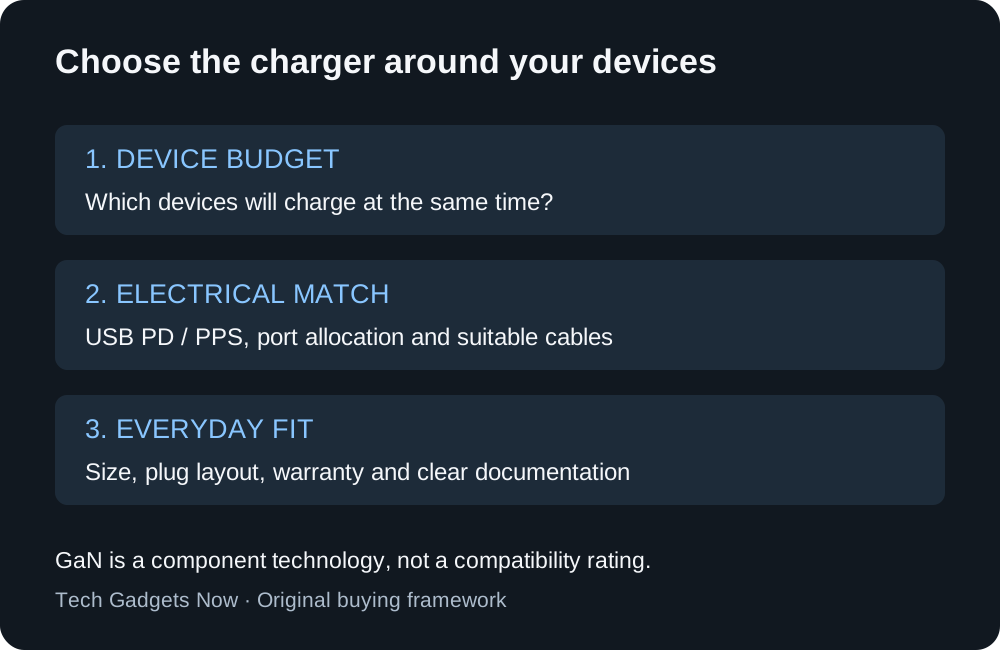
Figure 1. Work through the purchase in order. GaN describes a component technology; the complete charger still needs to fit your equipment.
Every serious multiport charger should state what happens when more than one port is active. Look for the maximum from a single port and the output split for each common combination.
For example, a charger may be rated at 100W total but divide power between a laptop and phone. That can be perfectly suitable if the laptop still gets its required input. It is a poor fit if the chart is absent or the laptop falls below the power needed for normal use.
What the USB-C specification says about shared ports
The USB Type-C Cable and Connector Specification separates the ports on a multi-port charger into two kinds. An Assured Capacity port keeps its own fixed power allocation. Shared Capacity ports form a group in which the combined maximums shown to you add up to more than the group’s total power. When several are in use, the charger divides that total between them. The specification also sets a floor. Each USB-C port must always offer at least 5V at 1.5A, however many other ports are busy. A newly connected device in a shared group must be able to get at least 7.5W, even if the charger has to renegotiate power from devices already connected.
The specification gives worked examples of how a shared group can be divided. In one, a four-port group has 30W in total and each port is rated up to 30W:
| Devices connected | “Highest-to-lowest” policy | “Balanced” policy |
|---|---|---|
| 1 | 30W | 30W |
| 2 | 22.5W + 7.5W | 15W + 15W |
| 3 | 15W + 7.5W + 7.5W | 10W + 10W + 10W |
| 4 | 7.5W on each port | 7.5W on each port |
These are the specification’s illustrations of two possible sharing policies, not a description of any product. They show why the single-port maximum stops applying once a second device is connected, and why a maker’s own allocation table is the document to read. USB-A ports on a USB-C charger must work as their own group, separate from the shared USB-C ports, with a minimum of 5V at 500mA each.
Check USB PD and PPS
USB-IF’s USB PD overview describes flexible power negotiation and support for up to 240W with compatible equipment. Most buyers will use much less than that. As explained in our USB-C Power Delivery guide, the practical point is to confirm the charging protocol instead of inferring support from a USB-C-shaped port.
If an Android phone’s fastest mode requires PPS, confirm that the charger explicitly lists USB PD PPS (see our explainer on what PPS charging is and when it matters). A GaN charger without PPS may still charge the phone, but it may not reach the phone’s highest supported speed.
Read the output table, not the headline wattage
The large number on the box is usually the maximum. The output table shows how that power is actually offered: as voltage and current combinations on each port. Volts multiplied by amps gives watts for each line. Each line is an alternative the charger can offer, so don’t add the lines together. Your device needs to support at least one line that meets its requirement.
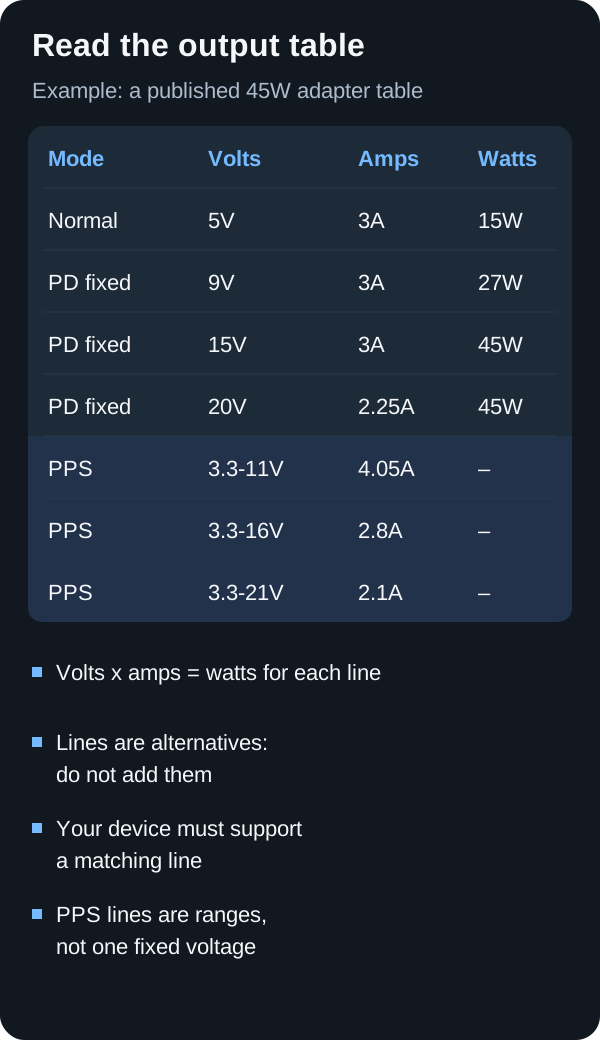
In this example, a laptop that wants 20V can get up to 45W, because 20V × 2.25A = 45W. A phone that uses PPS reads a different part of the table: the PPS ranges and their current limits. A table that lists PD fixed voltages but no PPS line has not shown PPS support. On a multi-port charger, find the table for the port and the combination of devices you plan to use.
Do not overlook the cable
A high-output charger needs a cable that can carry the intended power (see how to choose a USB-C cable). Keep the cable supplied with your laptop if it is known to work, or buy a replacement that clearly states its USB-C power rating. Do not assume a short cable bundled with earbuds or a phone will be appropriate for laptop charging.
Choose the shape for where it will live
For travel, a small wall charger with folding prongs may be more useful than a desktop unit. For a desk, a charger with a longer input cable and stable base can make repeated plugging easier. Large multiport chargers can be excellent desk tools but awkward in a crowded outlet or power strip.
A five-point buying checklist
- Match the charger to the combined load you use most often.
- Check USB PD and PPS requirements for the phone and laptop.
- Read the multiport allocation chart, not only the total wattage.
- Use a cable rated for the laptop’s required power.
- Prefer a maker that publishes complete technical information and safety documentation.
For the standards behind this checklist, browse the Charging & Power guides.
What GaN changes inside an adapter
Gallium nitride is a semiconductor material used in power-switching components. Texas Instruments explains in its GaN technology overview that reduced switching losses and higher switching frequencies can help designers build smaller power-conversion systems. That helps explain why the term appears on compact adapters. It does not identify the adapter’s charging protocols, number of usable ports, or power allocation.
Think of GaN as an engineering opportunity rather than a finished-product score. The circuit design, cooling arrangement, enclosure, controller, and component choices still affect the result. A percentage reduction claimed for a semiconductor maker’s reference design is not a measurement of every retail charger using that technology. Read such figures in their original context rather than transferring them to an unrelated product.
For shopping, compare the actual size and weight of complete adapters with comparable output and port arrangements. Include the removable mains lead or travel plug if one is necessary. A compact body can be convenient in a bag but less convenient behind furniture if its cable exits in the wrong direction. Your final decision should use the dimensions of the product you will carry and connect.
Build a power budget you can actually use
Start with the laptop’s original adapter rating or the manufacturer’s documented charging requirement. Then list the other devices you want to charge at the same time. Keep these values as planning targets rather than predicted consumption. An accessory does not continuously draw its maximum just because you reserve that much capacity for it.
For an illustrative desk setup, assign a 65W laptop target, a 25W phone target, and a 5W accessory target. The sum is 95W. That gives you an initial capacity target, but it does not prove that a 100W adapter will work: its three-port chart must provide suitable voltage and current combinations on the ports used. An adapter offering a 45W laptop allocation with three devices attached would miss the assumed 65W laptop target.
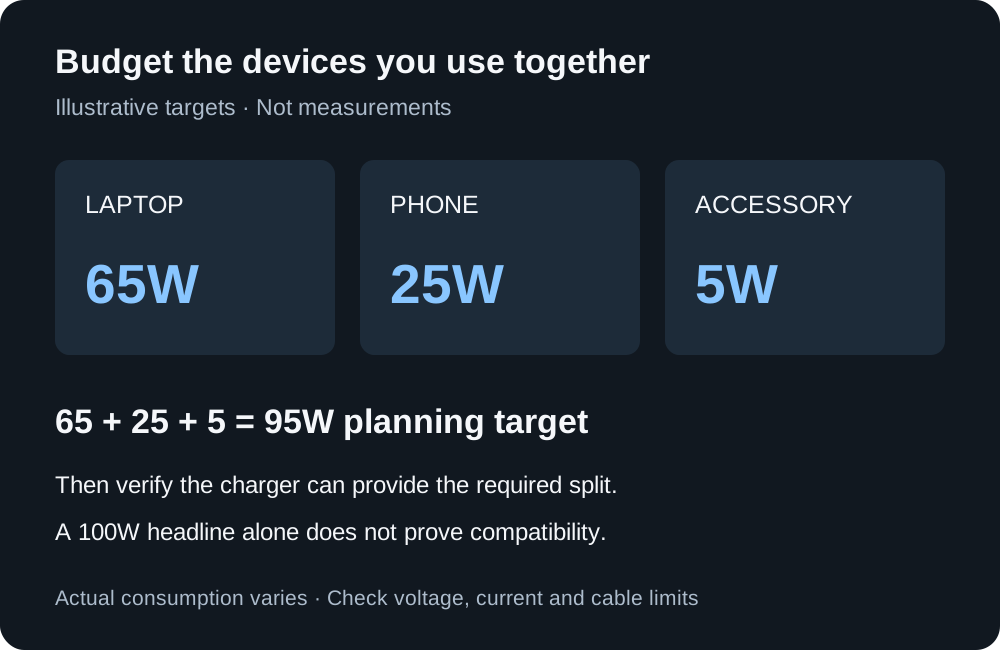
Figure 2. Hypothetical planning targets, not measured device consumption. Total output and per-port allocation must both fit the setup.
If your routine is to charge accessories overnight rather than alongside the laptop, you may not need that three-device capacity during the day. Write down the combinations that really occur. A larger adapter is worthwhile when it serves a repeatable need, not simply because adding every charger rating in the house creates a large number.
Read a real allocation example carefully
Apple’s 35W Dual USB-C Port Power Adapter instructions document different output splits for different paired devices. The page lists up to 17.5W per device in several combinations, and up to 27.5W plus 7.5W for certain laptop or phone plus watch or earbud combinations. This is an example of allocation documentation, not an endorsement of that adapter for the hypothetical 95W setup above or a claim about its semiconductor technology.
Use the same level of detail when comparing GaN chargers. Ask whether the table describes two USB-C ports, a USB-C and USB-A combination, or all ports together. Check for footnotes about which port gets priority. If the table only lists single-port maxima, it has not yet answered your simultaneous-use question. Look for the manual or a technical diagram specific to the model revision.
Also consider connection changes. If you often plug in a phone while using a laptop, observe what happens during that change within the return period. A product listing may describe power redistribution or a brief renegotiation. This matters particularly if the adapter powers a dock or another accessory that could be sensitive to an interruption. Do not assume a behavior observed on one multiport charger is universal.
Match the laptop input, not just its connector
Identify which laptop ports accept charging and which charging modes the machine supports. A USB-C data port is not automatically a power input. For supported USB-C-charging Macs, Apple’s adapter guidance permits USB PD adapters with higher or lower wattage, while recommending suitable power for the best experience. Apply that statement to its documented scope; another manufacturer’s laptop needs its own support information.
If the laptop normally uses a proprietary adapter, check whether USB-C charging is an officially supported alternative and whether it has limitations for demanding workloads. A small travel adapter that is adequate for reading documents might not replace the original adapter for every task. Decide whether you need an everyday replacement or a compact secondary charger, because those are different acceptance criteria.
Check the phone mode and the included cable
A phone’s fastest advertised mode can require a particular PPS range, current limit, and cable. The letters GaN do not supply any of those facts. Compare the exact mode in the phone documentation with the adapter’s PPS line, including its behavior when another port is occupied. Our PPS charging guide explains how to read those ranges and why current can matter even at modest total wattage.
Budget for a cable separately if the adapter ships without one. Check what is actually in the box and whether the included cable belongs to the charging mode you need. Avoid assuming that a cable included with earbuds is interchangeable with a laptop or high-current phone cable. The USB-C cable guide separates charging, current, data, and display requirements so you can choose a suitable replacement.
Compare practical ownership details
Read the input-voltage label for the exact adapter before international travel. A plug adapter changes the physical connection; it does not by itself establish voltage compatibility. Check whether a regional version includes a different plug or mains lead, and include those parts when comparing packed size. Confirm that the product you can actually buy matches the review or specification you are using.
For a desk, inspect the cable exit direction and distance to nearby outlets. For a bedside setup, consider whether indicator lights can be switched off and whether the adapter’s position leaves enough room for the cable. Look for a clearly identified manufacturer, model, warranty route, and support documentation. A protocol certification claim and an electrical-safety claim answer different questions, so do not treat one as proof of the other.
Check the purchase before retiring your old adapter
Test the new adapter with the laptop alone first, using a known-compatible cable. Then add the phone and the accessories you listed in the power budget. Use your normal workload and note whether the laptop maintains or increases its battery level over a representative session. This is a practical suitability check, not a laboratory efficiency measurement.
Keep conditions consistent when comparing adapters. A nearly full battery and an idle laptop are different from a low battery and demanding software. Do not estimate electrical safety or efficiency from how warm the enclosure feels; follow the maker’s operating guidance and arrange support for abnormal behavior or damage. Retain the original adapter until the new combination has proved suitable for your actual use.
Check a marketplace listing before you order
Shopping on a large marketplace changes where the information sits, not what you need to know. Before ordering, find these in the listing, the product images or the downloadable manual:
- The exact model number, and whether it matches the variant selected on the page. One listing can cover several wattages, plug types or bundles.
- A per-port output table with voltage and current lines, as described above. A wattage headline alone is not enough.
- A multi-port allocation table for the combinations you will use, if the charger has more than one port.
- An explicit USB PD claim, and a PPS line if your phone’s maker requires PPS.
- The certification claim, checked at its source. If the listing shows a USB-IF logo or says the charger is USB-IF certified, search the manufacturer and model in USB-IF’s Product Search. USB-IF says the search covers only products certified to carry its logo, and that members maintain their own entries. The list shows products certified in the last two years by default, so use the date filter for older models.
If a line on this list is missing, ask the seller or the manufacturer for the manual before buying. Keep a screenshot of the output table with the order. A failed search doesn’t prove the product is unsafe or counterfeit, but it leaves the certification claim unconfirmed. This guide does not recommend or rank particular listings.
The final decision
Choose the smallest convenient adapter that documents the modes and port combinations you need, comes with suitable support, and works with the cables you plan to use. Pay for useful capacity and physical convenience rather than a material label alone. This guide provides a buying framework and original explanatory diagrams. It does not claim hands-on testing, thermal measurements, or a ranked list of chargers.
Sources
- USB-IF: USB Charger and USB Power Delivery
- Texas Instruments: GaN technology
- Apple: dual-port adapter allocation
- Apple: Mac power-adapter compatibility
- USB-IF: USB Type-C Cable and Connector Specification, Release 2.5
- USB-IF: Product Search
- Apple: iPhone 15 technical specifications
- Apple: MacBook Air technical specifications
- Apple: MacBook Pro technical specifications
- Samsung: 45W Travel Adapter specifications