How to Choose a USB-C Cable for Charging and Data
USB-C cables can look identical while supporting different power and data capabilities. Match the cable to the job, then verify the rating and certification.
The short answer
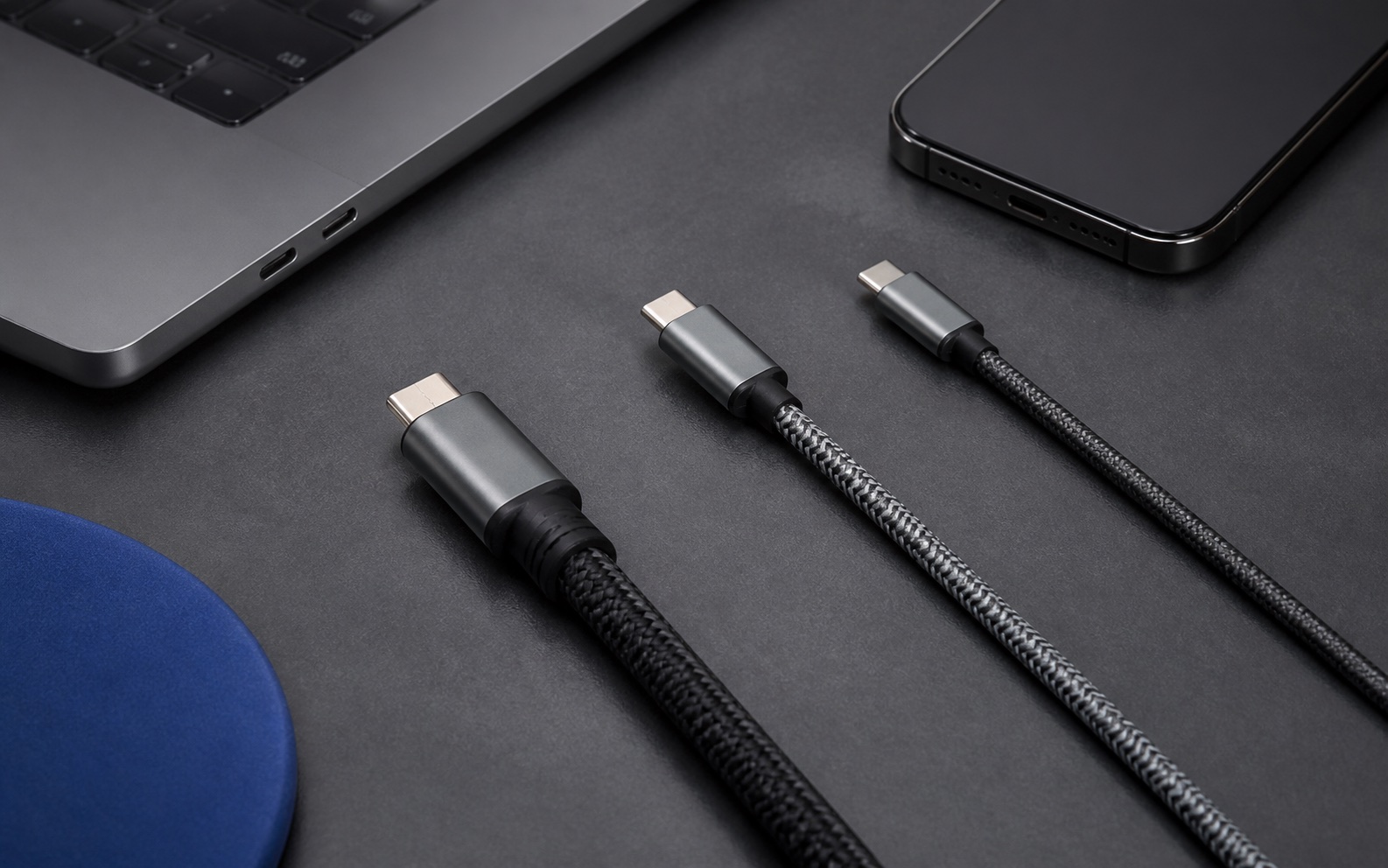
USB-C describes the connector shape, not a single level of charging or data performance. Two USB-C cables can fit the same phone or laptop while supporting different power ratings, data speeds, display features, and lengths. Choose the cable for the most demanding job you expect it to do, then verify the stated power and data rating. USB-IF says certified USB-C to USB-C cables are labelled with either 60W or 240W power capability, and most higher-speed certified cables must also show their data rate.
Decide what the cable needs to do
Start with the job, not the cable’s appearance.
| Job | What to check first |
|---|---|
| Charge a phone | USB-C connector type, a suitable power rating, length, and durability |
| Charge a laptop | The laptop’s required power and a cable rating that covers it |
| Transfer files | The stated data speed, not only the USB-C connector |
| Connect a display or dock | The dock and laptop documentation, plus the cable’s data capability |
| Travel with one cable | The combination of power rating, length, and the devices you actually carry |
There is no universally best USB-C cable. A flexible 1-meter phone cable may be ideal for charging but unsuitable for high-speed storage or a display dock. A high-capability cable may be less flexible or more expensive than the job requires.
Read power and data ratings separately
A cable’s power rating and data speed are different specifications.
- Power tells you the level the cable is intended to carry in a compatible charging path.
- Data speed tells you how quickly compatible devices can exchange files or support other data-heavy uses.
- Display support depends on the computer, the display or dock, and the cable path together.
The current USB-IF cable guidance describes 60W or 240W power markings for its USB-C to USB-C certification program, with separate data-rate markings and an exception for basic USB 2.0 cables. Use that distinction when comparing listings rather than interpreting a power label as an all-purpose performance grade.
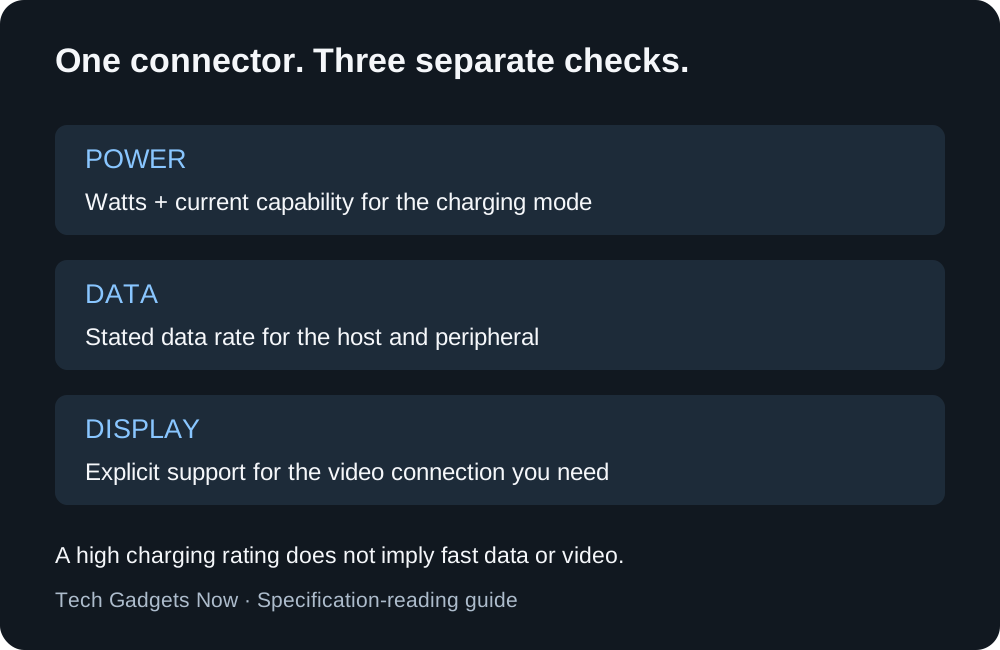
Figure 1. Check three separate specifications. A connector shape or charging rating cannot answer all three questions.
When do you need a 240W cable?
Consider a 240W-rated cable when you need its supported power or current capability, or want to cover a planned future device. A 240W cable does not make a 65W laptop charge at 240W. As detailed in our USB-C Power Delivery guide, the device and charger negotiate the actual power.
For phone charging, a 60W-rated cable is often sufficient if it meets the phone’s requirements. For a laptop or multiport setup, match the cable to the laptop’s official charger and the output you expect from your GaN wall adapter.
Power classes: 60W, 100W and 240W cables
Cable listings usually show one of three wattages. In practice, each one describes a current rating.
| Listing says | What it means in the specifications | What to confirm |
|---|---|---|
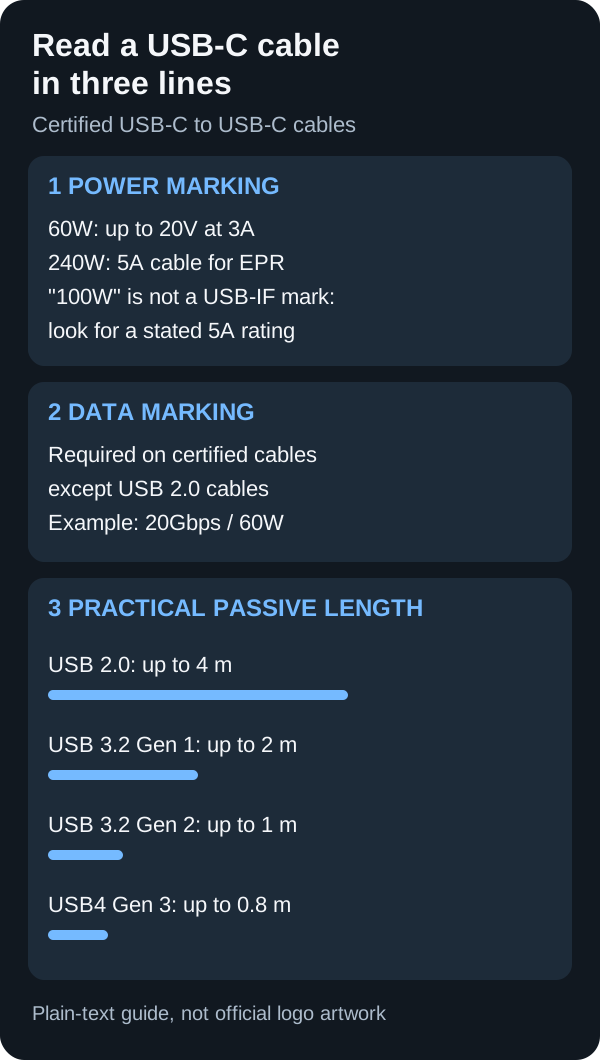
| 60W | A 3A cable. USB-IF’s own example is a cable that supports 20V at 3A | Enough for many phones and smaller laptops. Check the device’s required input |
| 100W | A 5A cable for USB PD’s standard power range. Before USB PD 3.1, USB PD topped out at 100W using 20V and a 5A cable | 100W is not one of USB-IF’s certification power marks. Look for a stated 5A rating |
| 240W | A 5A cable that is electronically marked for USB PD Extended Power Range (EPR) | Supports EPR above 100W; a 5A rating can also matter below 100W when the device requests more than 3A |
These rows come from the USB Type-C Cable and Connector Specification. It rates standard USB-C cables at 3A and requires any cable rated above 3A to carry an electronic marker that identifies its capability. The current release also deprecates standard-range-only 5A cables in favor of EPR-capable 5A cables. That is why newer certified 5A cables are marked 240W rather than 100W.
A higher-rated cable does not raise the power on its own. A charger only offers more than 3A after it reads that marker, and the device still asks only for what it needs. The USB-C Power Delivery guide explains how the charger, cable and device each set a limit.
Included cable or a separate purchase? A cable that comes with a charger or laptop is a useful reference because its maker matched it to that product. When you buy a replacement or a spare, read its current rating, power mark and data mark rather than assuming it matches the original. If the original cable came with a high-power adapter, check the new cable’s packaging or manual for a 5A or 240W rating.
Long cables and video output: what the specification allows
Does a 10-foot cable affect charging or data?
Length has a much larger effect on data speed than on the power rating. Table 3-1 of the Type-C specification lists the same 3A and 5A current ratings at every length. Its practical lengths for passive USB-C to USB-C cables depend on data speed:
| Data capability | Informative practical length (passive cable) |
|---|---|
| USB 2.0 | Up to 4 m |
| USB 3.2 Gen 1 | Up to 2 m |
| USB 3.2 Gen 2 | Up to 1 m |
| USB4 Gen 3 | Up to 0.8 m |
The specification calls these lengths informative, meaning they reflect practical cable performance rather than a hard legal limit. A 10-foot cable is about 3 m long, which fits only the USB 2.0 row. Check the manufacturer’s power and data ratings for the exact cable length; length alone does not establish either capability. The specification also defines active cables with built-in signal electronics. If a long cable is sold for high-speed data or video, confirm that it is described as active and read the exact speed and length printed for it.
What does a cable need for a monitor?
Use three questions. They decide which cable can work, while the monitor and dock documentation decides the rest.
- Does the setup use DisplayPort Alternate Mode? The Type-C specification defines Alternate Modes as a reconfiguration negotiated through USB PD messages. It defines USB 2.0 Type-C cables for USB 2.0 applications and full-featured cables for USB 3.2, USB4 and full-featured applications. A charging cable sold with USB 2.0 data is the wrong choice for a direct USB-C display connection.
- Is the computer or dock described as USB4? USB-IF’s USB4 overview says USB4 can carry several data and display protocols at once over one link. It also supports up to 80 Gbps over cables certified for 80 Gbps. Match the cable’s marked data rate to the speed the dock’s maker specifies.
- Is the dock or display sold as Thunderbolt? USB-IF says USB4 is based on the Thunderbolt protocol that Intel contributed and is compatible with Thunderbolt 3 hosts and devices. Thunderbolt still has its own product certification. For a Thunderbolt dock or display, use the cable type and length its maker specifies rather than substituting a generic USB-C cable.
The VESA section below covers DisplayPort over USB-C in more detail. This guide does not cover monitor-side settings such as resolution and refresh-rate menus.
What certification can tell you
USB-IF says products that display its certified logo must pass compliance testing and be listed through its program. Certification is useful evidence that a cable has been tested for the capability claimed under that program. It is not a guarantee that every charger, phone, dock, and display combination will work in every mode.
If a listing uses a USB-IF logo or certification claim, compare the exact manufacturer and model details with the official USB-IF Product Search. The relevant test identifier and model details are more useful than a seller’s generic statement that the brand is certified.
Length, durability, and everyday use
Choose length deliberately. A short cable is useful beside a power bank or on a desk. A longer cable is more convenient near a sofa, bed, or wall outlet but can be less tidy and may be exposed to more strain.
Look at strain relief, connector fit, warranty terms, and whether the cable’s thickness matches the intended use. Braiding can improve feel and abrasion resistance, but it does not by itself establish a power or data rating.
A five-point checklist
- Match the connector ends to the actual devices and charger.
- Confirm the needed power rating for the highest-power device.
- Check data speed separately if you transfer files, use storage, or connect docks.
- Prefer clear technical specifications and certification information over marketing language.
- Keep a known-good cable with the laptop or charger it was purchased for.
For charger selection, read USB-C Power Delivery explained and how to choose a GaN charger.
More related explainers are available in the Charging & Power guides.
A real example: high charging power, basic data
Apple’s 240W USB-C Charge Cable specification states that the cable supports charging up to 240W and transfers data at USB 2 rates. This is a useful example because the two capabilities appear together in the manufacturer’s own description. The high power rating does not make it a high-speed storage cable. It is a charging product with the stated data capability.
You can apply the same reading method to any brand. Highlight the power line and the data line separately. If the second line is missing, do not infer it from the cable’s thickness, price, or charging wattage. If you regularly copy large video files to an external drive, an explicitly suitable data cable belongs on your shortlist even when the device’s charging requirement is modest.
Avoid comparing advertised link rates with measured file-copy rates as if they were the same quantity. Storage hardware, file sizes, the host port, and software affect the completed transfer. A cable specification defines one part of the connection. When reading a review, look for the device and port used in the test before deciding that a number applies to your setup.
Check current as well as total wattage
For some charging modes, a wattage comparison alone misses a current requirement. Power equals voltage multiplied by current. An illustrative 10V, 4A mode uses 40W, but a 3A cable cannot satisfy that 4A requirement just because the cable can carry 60W at 20V. The operating point matters, not only the largest power number printed on the packaging.
Samsung documents a 5A cable for a named 45W adapter and phone combination in its 45W travel adapter specifications. This is one concrete reason to follow the exact device requirements. It does not mean every phone needs a 5A cable, and it does not mean every 45W mode has identical requirements. Use the manufacturer documentation for the phone and adapter you own.
For a replacement, compare current capability, supported charging standard, and power rating together. Keep a known-compatible cable with a demanding device so it does not get mixed into a drawer of unlabeled accessories. The PPS guide explains how an adjustable voltage range and current limit can affect that decision.
Buying a cable for a monitor or dock
A display connection requires more than successful charging. VESA’s DisplayPort FAQ explains that DisplayPort over USB-C uses an alternate mode, and that a compatible dock can carry video, USB data, and power through one connection. The computer must support the relevant display output, and the dock, cable, and monitor must support the intended arrangement. A charging-only capability claim does not establish those requirements.
Write the intended display setup in plain language before shopping: one monitor at a chosen resolution and refresh rate, or two monitors through a particular dock. Then find the corresponding supported configuration in the computer and dock manuals. Check whether the specified setup also allows the data connections you need. A broad label such as “4K” is incomplete without the refresh rate and other conditions.
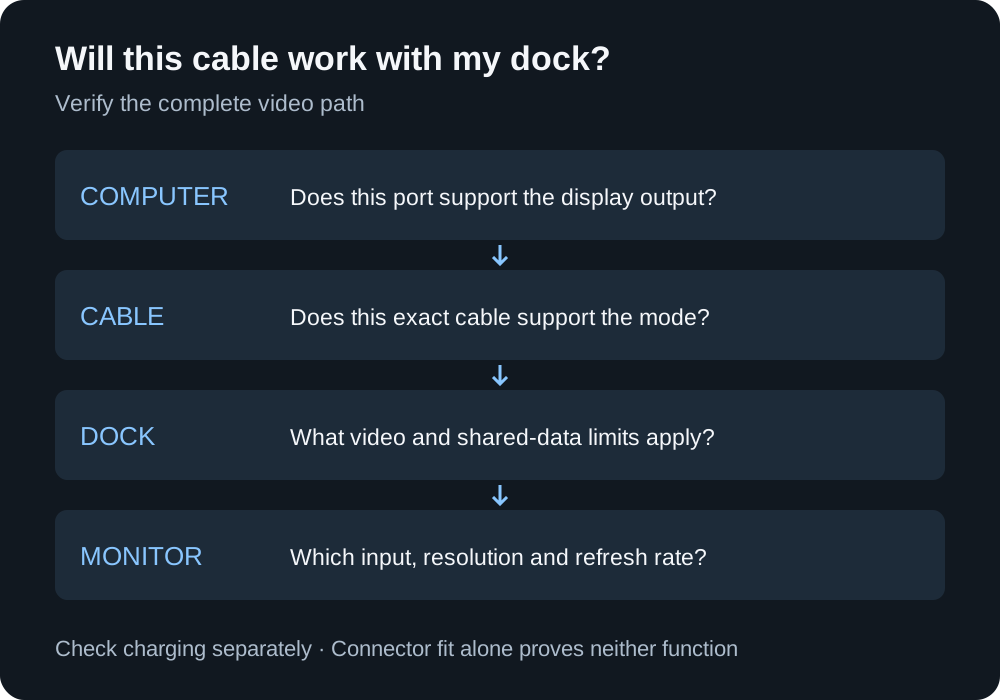
Figure 2. A buying checklist for a dock connection. The diagram describes what to verify, not a guarantee that any four USB-C products work together.
If the dock came with a short cable, establish that the supplied cable works before replacing it with a longer one. Choose the replacement according to the dock manufacturer’s required cable type and supported length. For direct USB-C to DisplayPort or HDMI connections, read the adapter’s stated input and output direction instead of assuming the cable works equally in reverse.
Plan length and connector fit before ordering
Measure the actual route from the socket or dock to the device, including the distance around the desk edge. Leave enough slack to move the device without pulling on the port, but avoid extra loops that will be trapped under chair wheels or repeatedly bent. The useful length is the one that works with your furniture and devices, not necessarily the longest option in the listing.
Check the dimensions of the connector housing if the phone lives in a thick case or the laptop has closely spaced ports. A connector may be electrically appropriate yet awkward to insert through a narrow case opening. Right-angle plugs can improve some arrangements, but their orientation can also block an adjacent port. Look at photographs showing the housing from more than one side.
For unusually long connections, read the manufacturer’s exact capability claim at that length. Do not assume every length offered under the same product family has the same specifications. Active and passive cable designs can have different limitations, and an extension or coupler adds another compatibility question. A direct, documented cable is usually easier to evaluate than an improvised chain.
Verify a new cable during the return period
First use the cable for its intended job with known-working equipment. For charging, keep the adapter and device the same while changing the cable. For data, use the same host port and external drive. For a monitor, keep the resolution, refresh rate, and dock fixed. Changing one component at a time gives a failure a much clearer meaning.
Run a representative task rather than relying only on the fact that a connector fits. Copy the kind of files you normally move, wake the connected monitor after sleep, or charge the laptop while doing your usual work. Record any disconnects and whether they occur with another cable in the same setup. These are practical acceptance checks, not a substitute for electrical compliance testing.
If the cable works in one port but not another, inspect the computer’s port descriptions. If charging works but video does not, return to the display requirements instead of treating charging as proof of full compatibility. If a known-working supplied cable solves the problem, preserve that comparison when contacting the seller. Stop using visibly damaged cables rather than trying to make them work by bending the connector.
Build a small, labeled cable kit
Many users need two clearly identified cables rather than one expensive cable for everything: a comfortable charging cable for everyday use and a documented cable for a dock or fast storage. Choose a third only for a separate job, such as a compact power-bank connection. This keeps requirements clear and reduces the temptation to replace a working cable because a new specification exists.
Label cables by function and proven setup, for example “desk dock” or “laptop charger,” and retain the product model in your purchase records. Before a trip, test the exact adapter, cable, and device combination you plan to carry. This guide is an editorial decision framework; the diagrams explain compatibility checks and no cable benchmark or durability test is claimed.
Sources
Related articles
USB-C Power Delivery Explained: What a Charger Can Actually Do
USB-C Power Delivery is a charging protocol, not a promise that every USB-C charger, cable, and device will work at full speed.
Read article
What Is PPS Charging? A Practical USB PD Guide
PPS is an optional USB Power Delivery feature that lets compatible devices request adjustable voltage. It matters only when the phone and charger both support it.
Read article
Qi2 vs MagSafe: What Changes When You Buy a Wireless Charger
Qi2 and MagSafe both use magnetic alignment in compatible products, but the label on a charger still matters for certification and compatibility.
Read article